Install pyCANdo on an x86 device
Choose this path for an Intel or AMD powerd device, such as an industrial PC, mini PC, or rack-mounted system
- Make sure your x86 based device supports a 64-bit Debian installation
- Has a minimum of 4 Cores
- Use the device exclusive for running pyCANdo, you will need no GUI (GNOME or similar)
Download Debian
Download the latest Debian Netinst iso
Installation settings
- set a username and password
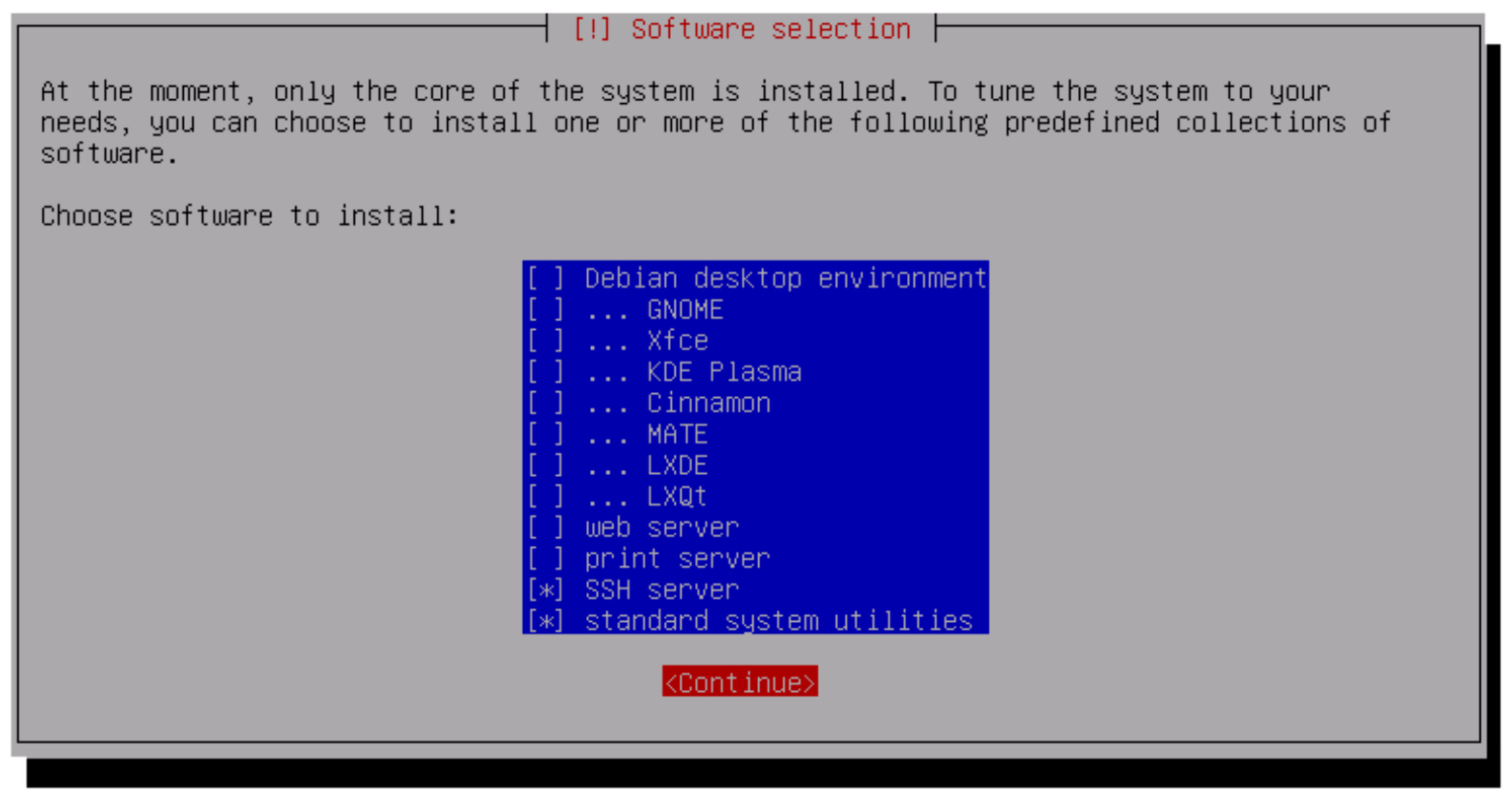
- do not select a GUI like GNOME or similar
- make sure to select the SSH server, since it is the most convenient way of executing the needed installation commands for the later on pyCANdo installation
Connect through SSH
Open a terminal after the installation finished Connect with the configured username and hostname, and then run the required installation check
ssh username@rp42mkdir -p /tmp/pcdinstall && curl -fL "https://service.pycando.com/pcdup/install?device_id=7882321068&customer_id=tobias%40andorfer.tech&activation_key=2zz8U8hWCZ&arch=$(a=$(dpkg --print-architecture 2>/dev/null||uname -m); case $a in x86_64|amd64) echo amd64;; aarch64|arm64) echo arm64;; *) echo $a;; esac)" -o /tmp/pcdinstall/install_bundle.zip && unzip -oq /tmp/pcdinstall/install_bundle.zip -d /tmp/pcdinstall && chmod +x /tmp/pcdinstall/scripts/entry && sudo env PCD_DEVICE_ID=7882321068 PCD_CUSTOMER_ID=tobias@andorfer.tech PCD_ACTIVATION_KEY=2zz8U8hWCZ /tmp/pcdinstall/scripts/entryWait for reboot
After the execution there follows a download and installation process that will finsh with a reboot, after that a followup installation of furter components occure in the backround depending on the performance of your device this can take several minutes
Import the pyCANdo Certificat into your webbrowser
To allow for a secure connection via the webbrowser a certificat issiued for the hostname was downloaded onto your pycando device in the installation process. For this to work you will need to add the public pyCANdo certificat into your webbrowser
You can test for a finished installation by trying to connect to https://<device_hostname>/pycando
A connection attempt using the ip address like this https://192.168.178.42/pycando will not work for a secure connection since certificats can't be issiued for ip adresses